Make & View

Specifications

XR work guides you build without code and verify on-site with AR. See every Make & View feature and spec at a glance.

Solution

XR work guides — create without code, deploy over the cloud

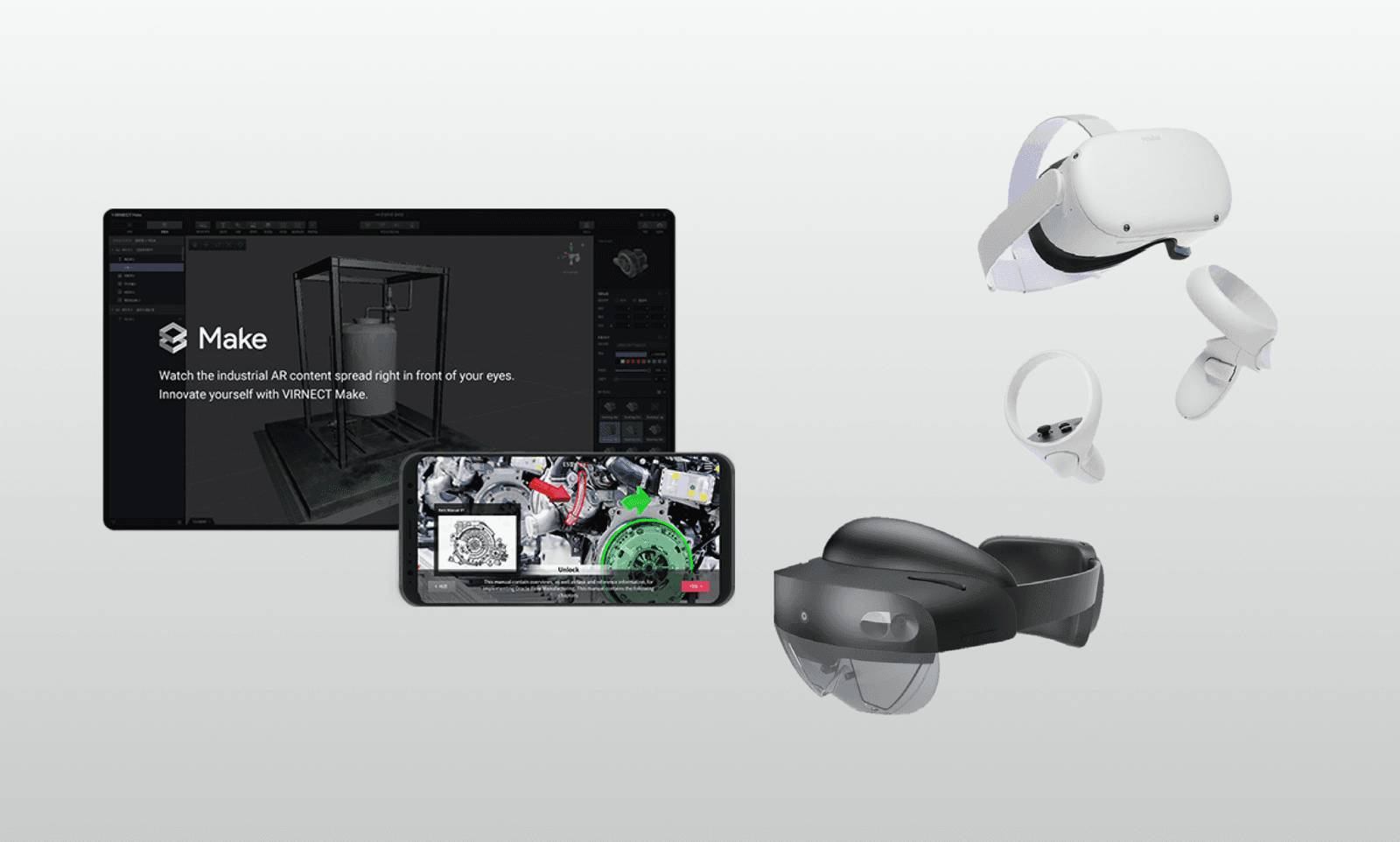
Author 3D work content in Make, deploy it over the cloud, and view it overlaid on real equipment on-site. On-premise self-hosting is also supported to meet your organization’s security requirements.

Overview of the Make & View solution

How it Works

Complete in three steps — Create, Deploy, View

  1. Step 01

    Create

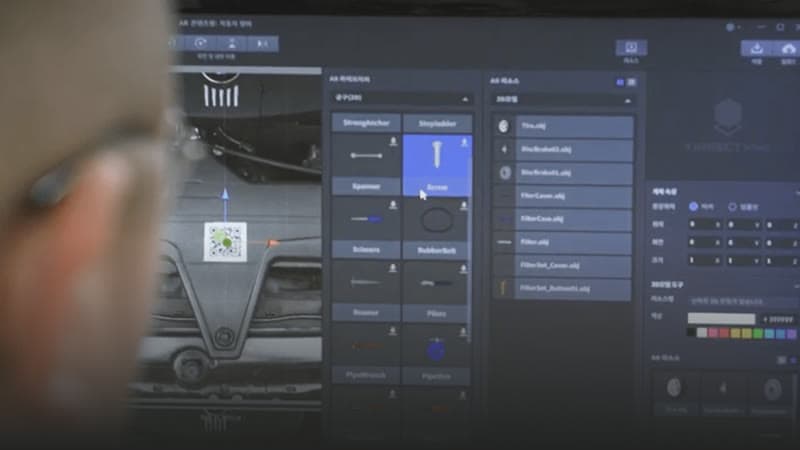
    Author 3D work content with no coding using drag-and-drop. Import PowerPoint for rapid conversion, and use built-in TTS narration, collision/snap events, and guide-object placement.

  2. Step 02

    Manage & Deploy

    Manage files and content plus members and permissions in the Workstation, and create and deploy training courses. Collect work reports and monitor progress in one place.

  3. Step 03

    View

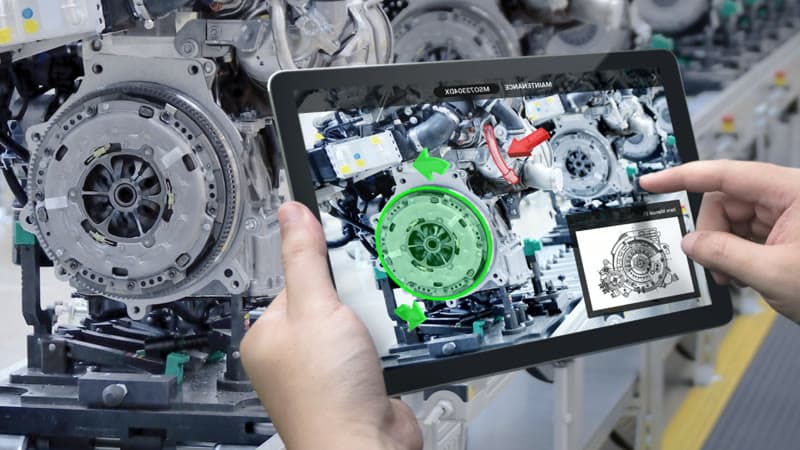
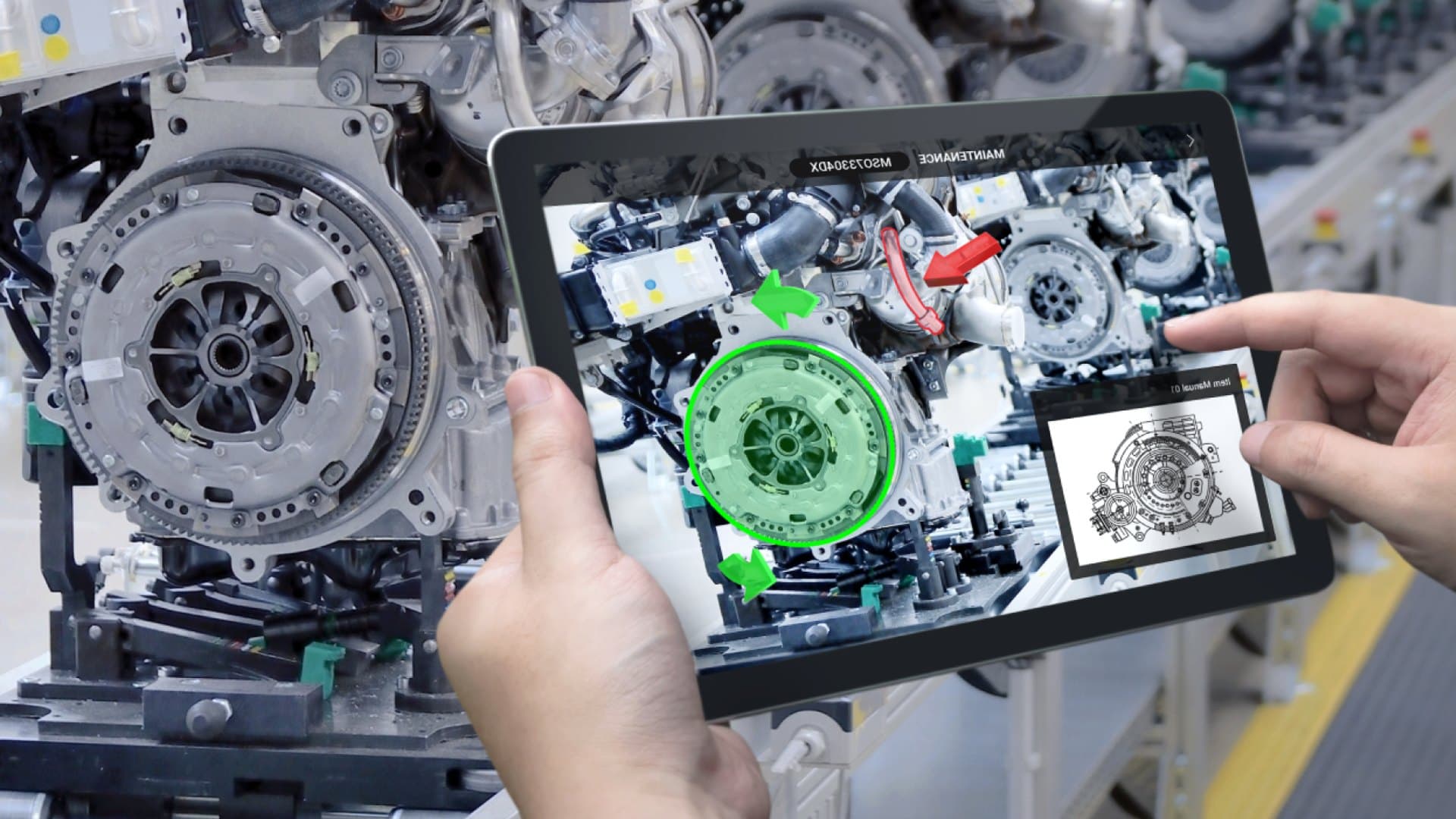
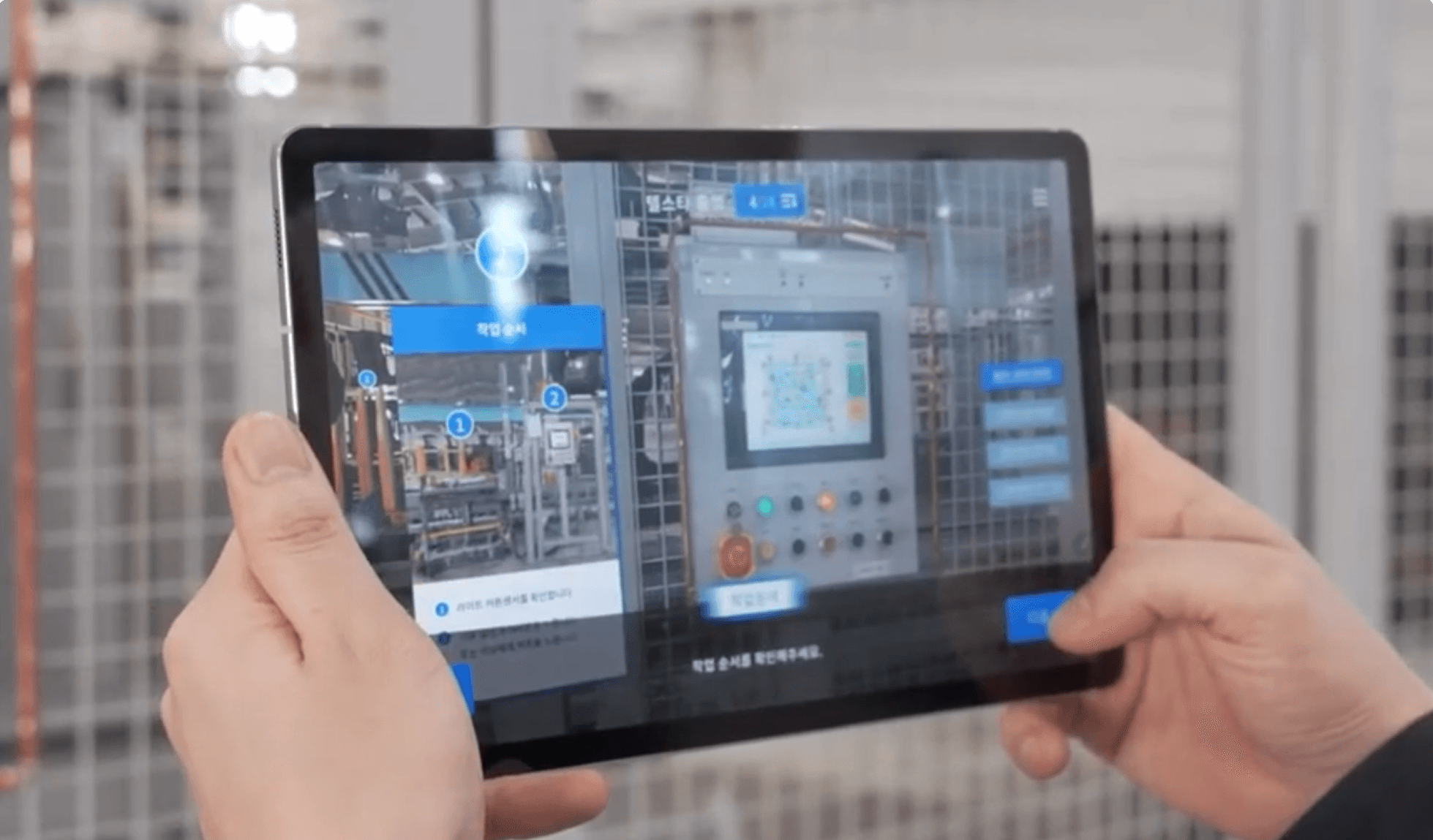
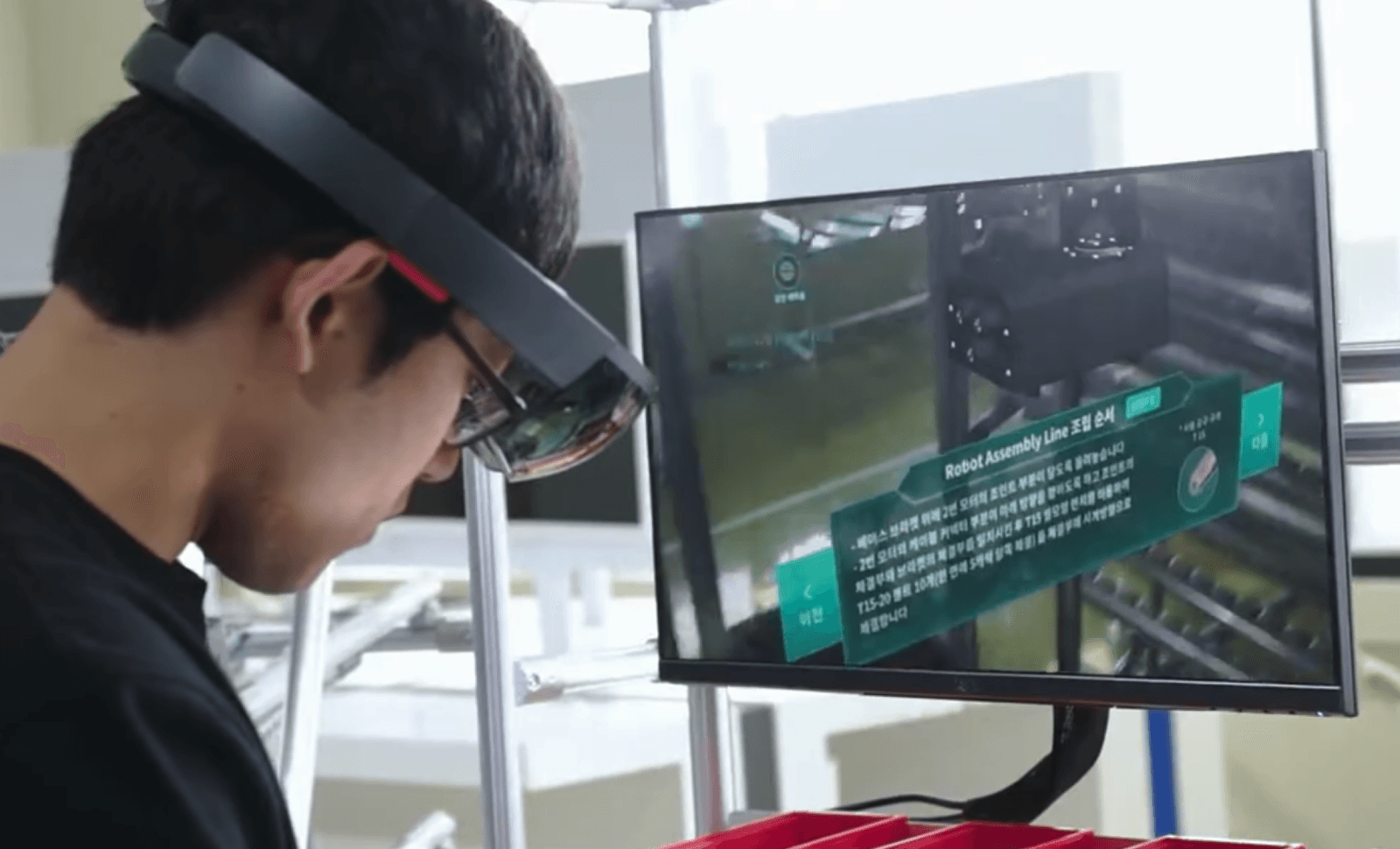
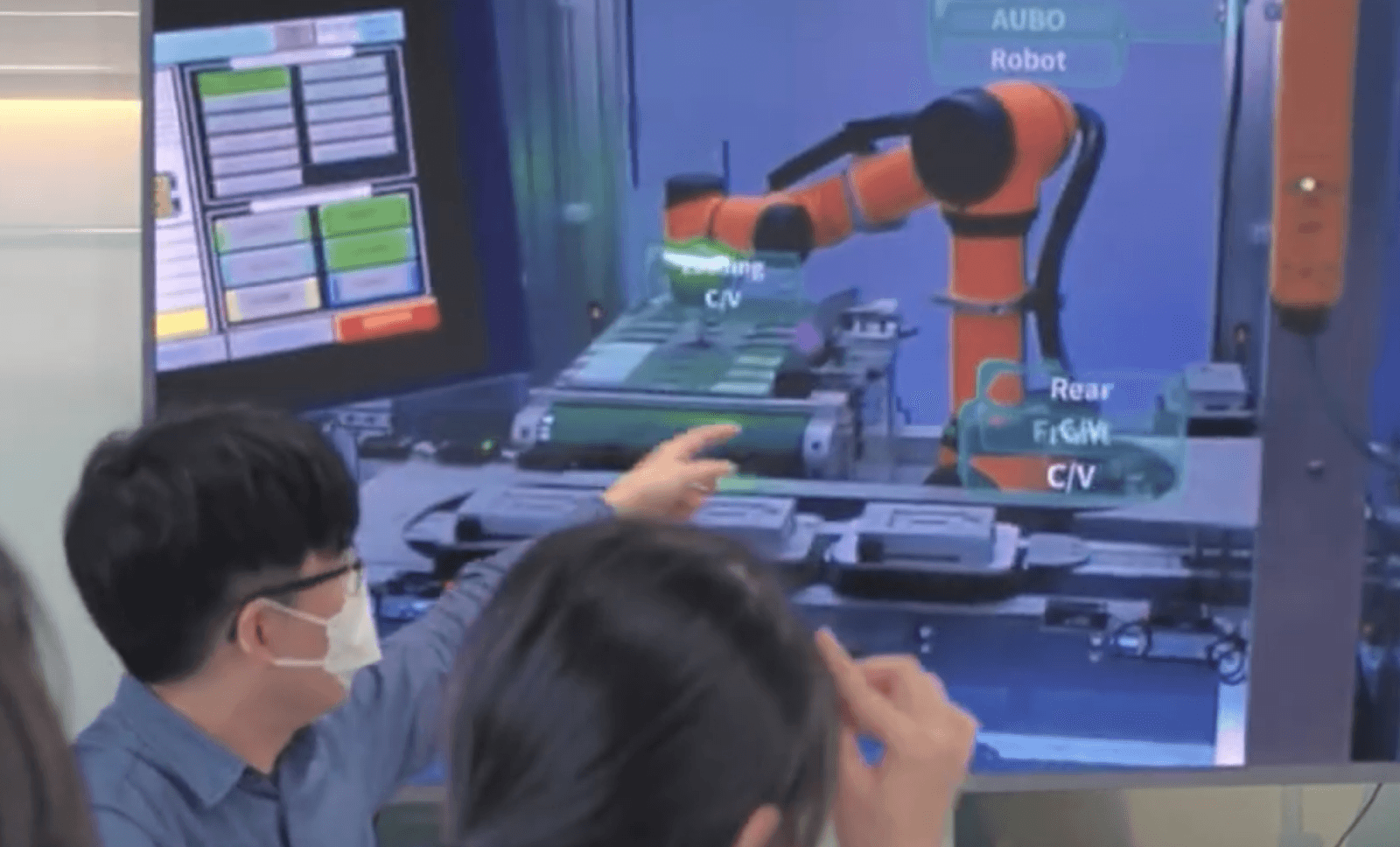
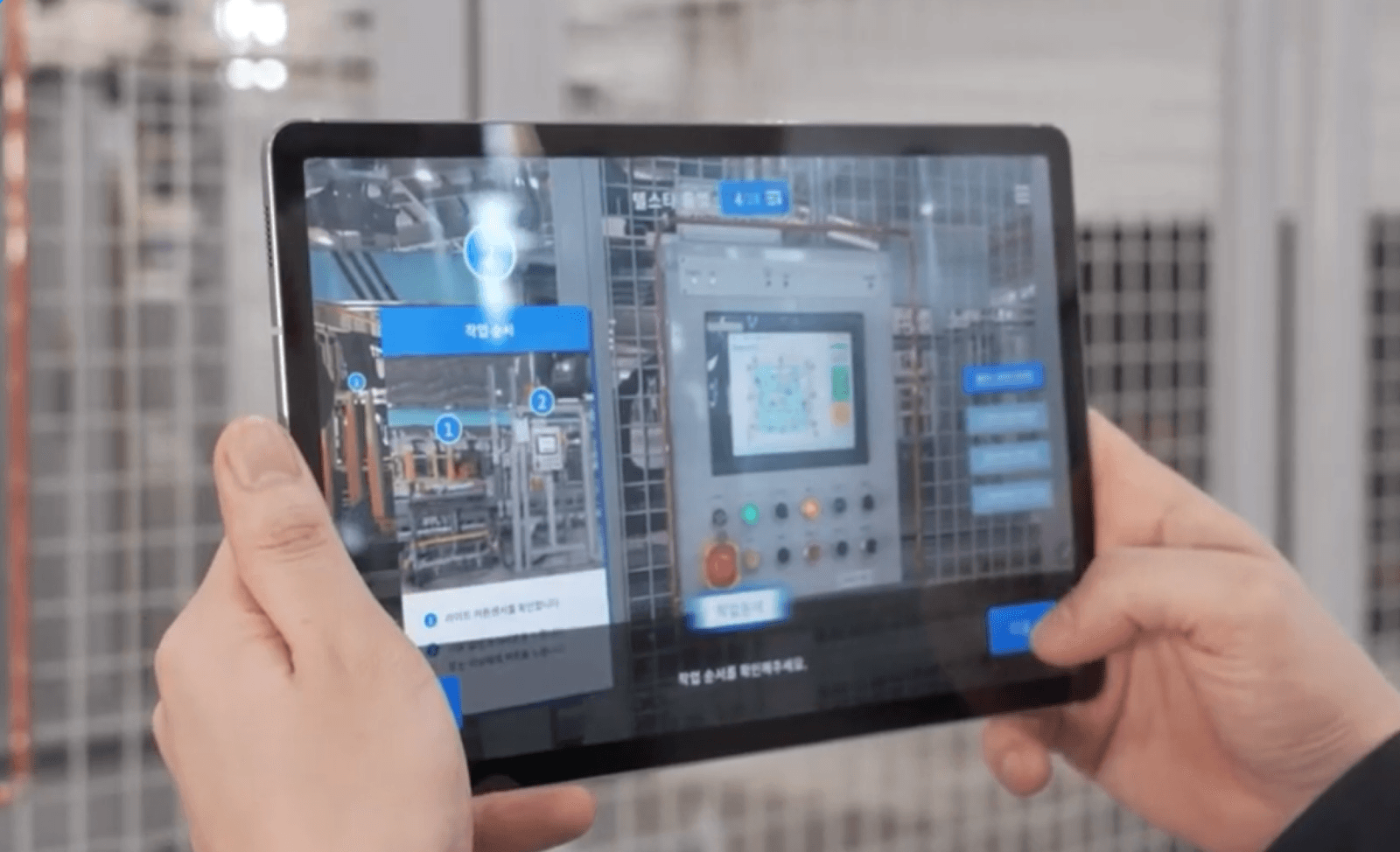
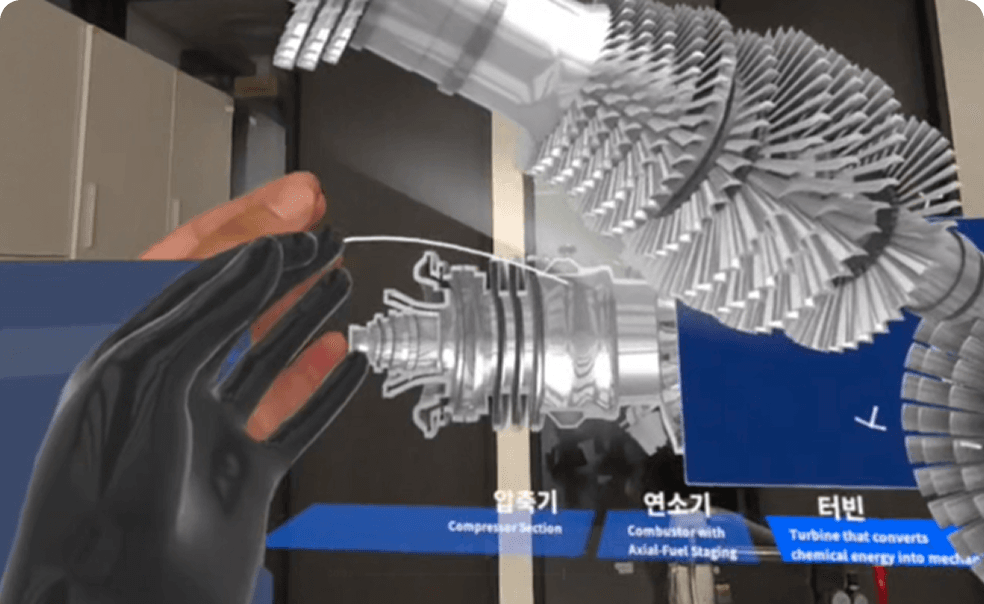
    Overlay work steps on real equipment with tablets, phones, VR headsets, or PC. Align targets via QR code, image, 3D object, and floor (space) recognition.

Specifications

VIRNECT Make Device Specs

OS
Windows 11 Pro 64bit
CPU
Min. Intel i5-10400 or equivalent AMD · Rec. Intel i7-10700 or equivalent AMD
GPU
Min. NVIDIA GeForce GTX 1050 · Rec. GTX 1080 Ti
Memory
Min. 8GB · Rec. 16GB
Resolution
Supports FHD (1920×1080) to 4K (3840×2160)
Storage
3GB free disk space
Mouse
Wheel mouse
Network speed
Min. 3 Mbps · recommended 100 Mbps

Minimum is the required equivalent; recommended is equivalent or higher. Use recommended network speed for large asset uploads.

Specifications

VIRNECT View Device Specs

View Mobile (Android)
OS Min. Android 10 · Rec. Android 12 · CPU Min. Snapdragon 865 · Rec. Snapdragon 8 Gen 1 (or equivalent) · GPU Min. Adreno 650 · Rec. Adreno 730 · Memory Min. 6GB · Rec. 8GB · Devices Min. Galaxy S20 / Tab S7 · Rec. Galaxy S22 / Tab S8
View Mobile (iOS)
OS Min. iOS 14 · Rec. iOS 16 · CPU Min. Apple A14 · Rec. Apple A15 · Memory Min. 4GB · Rec. 6GB · Devices Min. iPhone 12 / iPad Air (4th gen) · Rec. iPhone 14 / iPad Pro 11 (4th gen)
View Quest (VR)
Devices Min. Meta Quest 3S · Rec. Meta Quest 3

Minimum is the required equivalent; recommended is equivalent or higher. Beyond mobile and VR, View is also supported on Windows and MacOS PCs.

Features

Key Features

  • One content running across multiple devices

    Run on any device instantly

    A single piece of work-guide content runs as-is on PC, tablet, smartphone, smart glasses, and VR headsets — no rebuilding.

  • Work steps overlaid on real equipment in AR when a device is pointed at it

    Face the equipment, see the next step

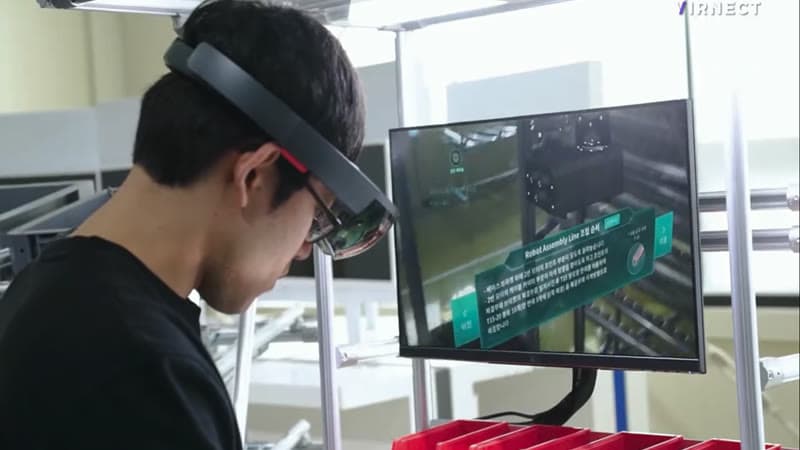
    Point a smart device at the equipment and the work steps overlay on the real object in AR. No more switching between the manual and the equipment.

  • Turning experienced workers’ know-how into work content

    Preserve expert know-how as content

    Capture experienced workers’ procedures and know-how as 3D work content, building it into an organizational asset regardless of staff turnover.

  • A new worker performing a task by following an AR work guide

    Turn newcomers into skilled operators

    With standardized AR work guides, even new workers can perform at an experienced operator’s level.

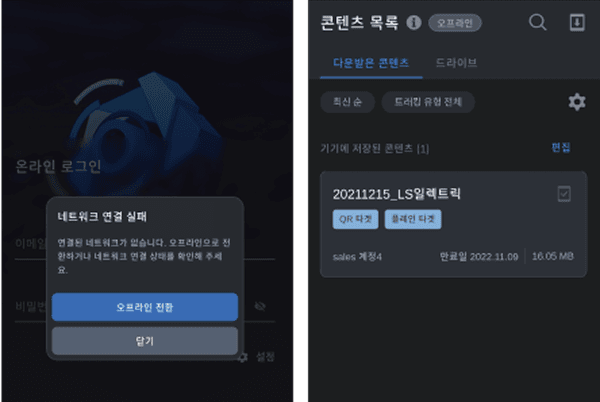
  • Using the work guide offline on a site without a network

    Works on-site even without internet

    Download content in advance and use the work guide fully even where there is no network.

  • Practicing repeatedly on a virtual recreation of a real line

    Repeated practice virtually, no costly equipment

    Recreate real facilities and lines virtually to practice repeatedly and safely — no expensive equipment required.

  • Multiple users training together with linked content

    Train multiple users together in real time

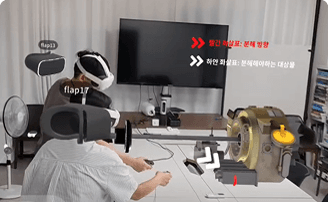
    Content is linked so multiple users connect at once, viewing the same work together for efficient on-site training.

  • Checking training completion status on a dashboard

    Track training completion at a glance

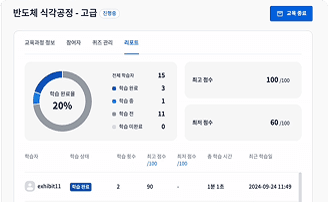
    See at a glance who has completed which content and how much, managing it all from a dashboard.

Success Stories

Adoption Cases

  • XR-based EV maintenance training caseEducation · Automotive

    Jeonnam State University

    EV Maintenance Training with XR — Safer Skills for the Future

    Electric vehicles use high-voltage batteries, posing a shock risk for untrained technicians. With VIRNECT’s XR-based training content, Jeonnam State University lets technicians safely learn maintenance procedures in a virtual environment before handling real vehicles.
  • AR flight simulator adoption caseAviation · Education

    Aviation Training Institute

    AR Flight Simulator — Unlimited Training Without Limits

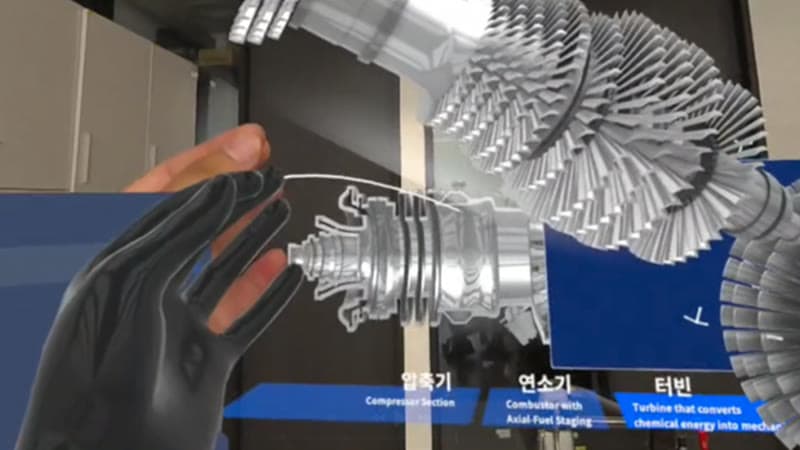
    Traditional cockpit simulators are expensive and limited in number. VIRNECT’s AR flight simulator lets trainees practice scenarios such as takeoff and landing on HoloLens 2, free from the constraints of cost and space.

  • Smart factory management solution caseManufacturing · Smart Factory

    Gyeonggi-do Business & Science Agency · Telstar Hommel

    Solutions for Smart Factory Management

    VIRNECT collaborated with the Gyeonggi-do Business & Science Accelerator and the Innobiz Association to integrate SME manufacturing know-how into smart factories. Smart-factory maker Telstar Hommel applied a range of XR content.

  • Hanwha Precision Machinery adoption caseManufacturing · Machinery

    Hanwha Precision Machinery

    Solutions Application for Mechanical Equipment Malfunction

    By adopting VIRNECT Remote and VIRNECT Make, Hanwha Precision Machinery enabled fast, accurate responses when mechanical equipment fails.

Real Make & View adoption cases. See more on the Success Stories page.

FAQ

Frequently Asked Questions

Can I use it without any XR content creation experience?

Yes. Make is a no-code authoring tool that works like PowerPoint, so operations teams with no development knowledge can create 3D work content directly.

Which devices can view the content?

View runs on mobile (smartphones/tablets), VR headsets (e.g. Meta Quest), and PC (View PC). View PC supports a VR mode, so you can check VR content on a PC without dedicated hardware.

Can I reuse the PowerPoint files I already have?

Yes. The automatic PPT-conversion feature turns slides, shapes, images, and text into individual objects, so you can use your existing documents directly for XR content creation.

Can it integrate with real-time data from our internal systems?

Yes. Direct REST API calls exchange data with your servers over HTTP, so sensing data from systems such as MES can be shown in content in real time — with no additional custom development.

Can it be used at sites with no network?

Yes. If you pre-download the content, you can view work guides with View even offline. Once downloaded, content is augmented instantly without re-downloading.

Do I have to rebuild every time I edit content?

No. You can edit content without a separate build, and test event behavior before deployment using Make’s preview feature.

How is licensing handled?

A workspace-level floating license is assigned automatically when a user starts actually using content (creating, augmenting, etc.) and returned automatically when use ends. Make, View, and Remote licenses are managed by concurrent devices to minimize idle-license waste.

What is the difference between the subscription and on-premise plans?

The Standard subscription is KRW 30,000 per account per month (excl. VAT), letting you start quickly with no upfront cost. The Enterprise on-premise/private-cloud plan includes a perpetual license and maintenance, and runs on a floating license based on concurrent devices.

Can I try it for free?

Yes. Request a demo at https://virnect.com/ko/support/inquiry?tab=demo, and our team will issue a license after discussing the quantity and period you need.

Interested in adopting Make & View?

Our experts will guide you to the right configuration and specifications for your field.

Contact us